Step-by-Step Guide
How to Use Caelus on Samsung OneUI
Caelus works with Samsung OneUI. Install the pack, open the launcher's icon settings, and select your preferred Caelus variant.
About this icon pack
Consistent linear icons for your homescreen
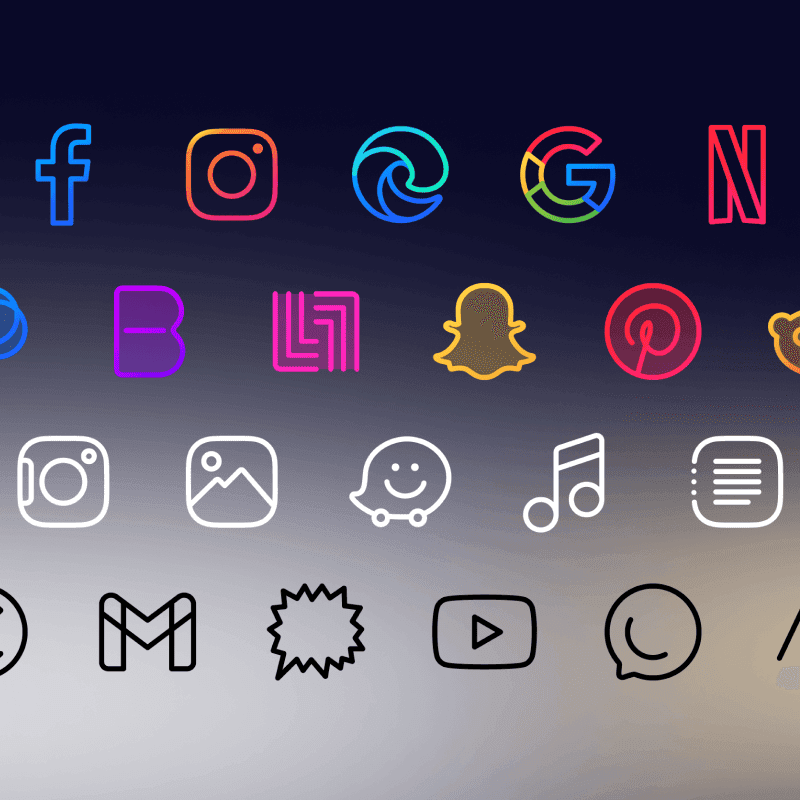
Linear shapeless icon pack for your Android device. Choose between four variants, colorful, duotone, white, and black.
- Linear outline style
- Consistent stroke width
- 5000+ icons
- 4 color variants
- Matching KWGT widgets
- Regular updates
Available variants: Caelus, Caelus Duotone, Caelus White, Caelus Black.
Install Good Lock
Download 'Good Lock' from the Galaxy Store (or 'NiceLock' if not available in your region).
Install Theme Park
Open Good Lock and download 'Theme Park' module.
Open Theme Park
Launch Theme Park from Good Lock or your app drawer.
Create New Theme
Tap the '+' button to create a new icon theme.
Select Icon Pack
Choose 'Third Party' and select your One4Studio icon pack.
Apply Theme
Save the theme and apply it through Theme Park.
Note
Samsung OneUI requires additional setup compared to other launchers. Follow the steps above carefully for the best results.
Frequently Asked Questions
Does Samsung OneUI support Caelus icon pack?▼
Yes! Samsung OneUI fully supports Caelus and other third-party icon packs. Simply follow the steps in this guide to apply your icons.
Is Caelus free to use?▼
Caelus is a premium icon pack available on the Google Play Store. It includes 4 variants, matching KWGT widgets, and regular updates with new icons.
What if my app icons aren't themed?▼
Not all apps have themed icons. You can request missing icons through the app - open Caelus, go to the Request section, select the apps you want themed, and send the request.
Can I use Caelus on iOS?▼
Caelus is currently only available for Android devices.