Step-by-Step Guide
How to Use Ares on Action Launcher
Ares works with Action Launcher. Install the pack, open the launcher's icon settings, and select your preferred Ares variant.
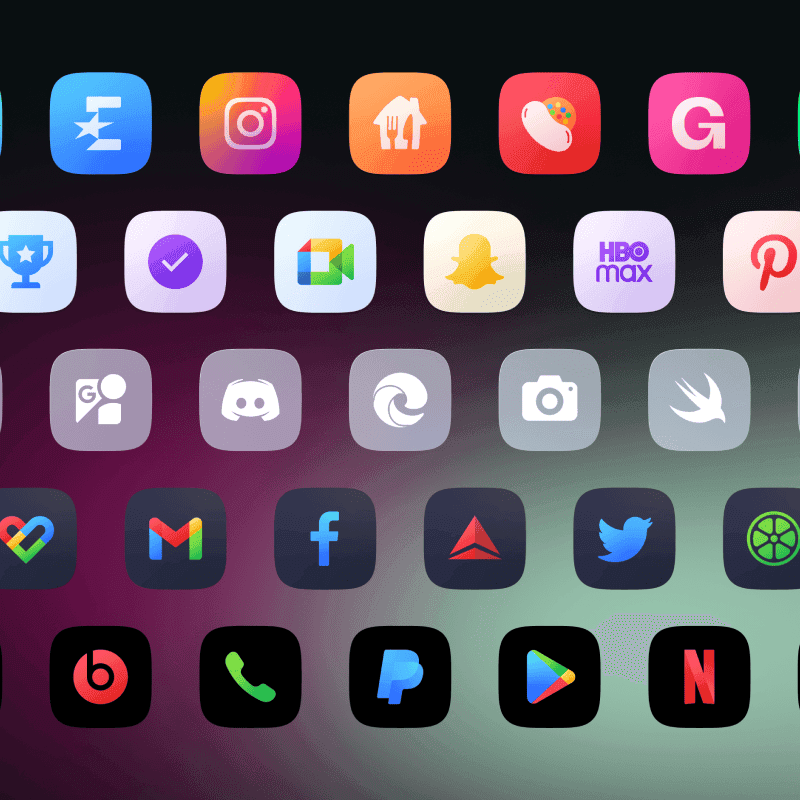
About this icon pack
Clean, squircle-shaped icons for your phone
A beautiful bundle of 5 high-quality icon packs. Regular (colorful), Light, Arctic, Dark, and Black.
- Squircle shape design
- 5500+ icons
- 5 color variants
- Matching KWGT widgets
- Matching wallpapers
- Regular updates
Available variants: Ares, Ares Light, Ares Dark, Ares Black, Ares Arctic.
Install Action Launcher
Get Action Launcher from the Play Store and set as your home app.
Open Action Settings
Long-press on the home screen and select 'Action Settings'.
Go to Appearance
Navigate to 'Appearance' in the settings menu.
Select Icon Pack
Tap 'Icon pack' and choose your One4Studio pack.
Apply Icons
Icons will be applied across your home screen and app drawer.
Get Ares
Download Ares and start customizing your Action Launcher setup today.
Frequently Asked Questions
Does Action Launcher support Ares icon pack?▼
Yes! Action Launcher fully supports Ares and other third-party icon packs. Simply follow the steps in this guide to apply your icons.
Is Ares free to use?▼
Ares is a premium icon pack available on the Google Play Store. It includes 5 variants, matching KWGT widgets, and regular updates with new icons.
What if my app icons aren't themed?▼
Not all apps have themed icons. You can request missing icons through the app - open Ares, go to the Request section, select the apps you want themed, and send the request.
Can I use Ares on iOS?▼
Yes! Ares is available for iOS devices. You can purchase the icon pack from our Gumroad store and use Shortcuts to apply icons.